On this page
- What you need
- Step 1: Install the plugin
- Step 2: Connect your OpenAI API key
- Step 3: Teach the chatbot your store
- Step 4: Turn on the WooCommerce features
- Step 5: Match the widget to your brand
- Step 6: Decide what happens when the bot can’t answer
- Step 7: Test with real questions
- Optional: add WhatsApp and Telegram
- Keep it accurate
- Frequently asked questions
Adding an AI chatbot to WooCommerce used to mean a monthly SaaS subscription, a script tag in your theme and weeks of writing scripted answers. Today a WordPress plugin can learn your store on its own and start answering customers in minutes.
This guide uses Aisk, a free AI chatbot plugin built for WooCommerce. The same steps apply to most plugin-based chatbots.
What you need
- WordPress 5.0+ and PHP 7.4+
- WooCommerce (optional, but needed for product search and order tracking)
- An OpenAI API key — usage is billed by OpenAI directly (how costs work)
Step 1: Install the plugin
- In your WordPress admin, go to Plugins → Add New.
- Search for Aisk and click Install Now, then Activate.
- Open Settings → Aisk.
Prefer a manual install? Download the zip from WordPress.org and upload it under Plugins → Add New → Upload.
Step 2: Connect your OpenAI API key
- Sign in at platform.openai.com and add a payment method.
- Set a monthly usage limit in OpenAI’s billing settings — this is your hard spending cap.
- Create an API key, paste it into Settings → Aisk and save.
Keep the key private. Anyone who has it can spend on your account.
Step 3: Teach the chatbot your store
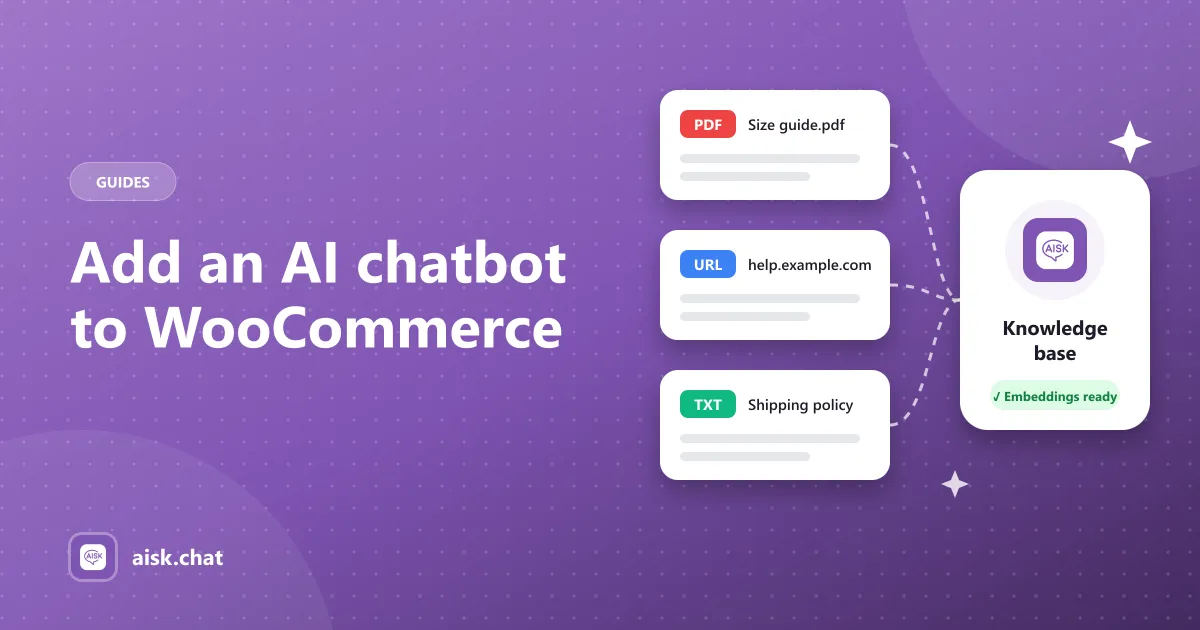
Click Generate Embeddings. Aisk scans your pages, posts, WooCommerce products and FAQs and builds a knowledge base from them, so answers come from your store — not generic AI knowledge.
Then fill the gaps with External Knowledge:
- PDFs and documents — size guides, manuals, warranty terms
- External URLs — help-center articles hosted elsewhere
- Custom text — shipping rules, return policy, opening hours
More detail in how to train an AI chatbot on your website.
Step 4: Turn on the WooCommerce features
Enable the WooCommerce integration in the Aisk settings. The chatbot can now:
- Find products from a description, color, size or category — “a waterproof jacket in medium” (details)
- Show recommendations as product cards with images, prices and buy links
- Track orders when the customer gives their order number and email (details)
Step 5: Match the widget to your brand
Under the widget settings, change the colors, choose or upload the header logo and chat bubble icon, and add a few welcome messages — for example “Looking for a gift? Tell me who it’s for.” A specific prompt gets more conversations started than a generic “How can I help?”.
Step 6: Decide what happens when the bot can’t answer
No AI knows everything. Add your support email or phone number so Aisk can show them when it’s unsure, or let customers open a support ticket from the chat. Tickets appear in the Aisk dashboard.
Step 7: Test with real questions
Before you announce it, ask the chatbot the questions your inbox actually gets:
- “Where is my order?” (use a real test order number and email)
- A product search in a customer’s words, not your product title
- “Do you ship to [country]?” and “What’s your return policy?”
- A question it shouldn’t know, to check the fallback works
If an answer is wrong, the fix is almost always content: add or correct the information, then regenerate embeddings.
Optional: add WhatsApp and Telegram
The same assistant can answer on WhatsApp (through Twilio) and Telegram (through a bot from @BotFather), with every conversation in one dashboard. See sell on WhatsApp and Telegram.
Keep it accurate
- Regenerate embeddings after adding products or changing policies.
- Check the analytics dashboard weekly to see what customers ask — unanswered questions are a to-do list for your content.
- Review your OpenAI usage in the first month to learn your typical cost.
Comparing options first? Read our comparison of AI WooCommerce chatbots, or go straight to the setup docs.
Frequently asked questions
How do I add an AI chatbot to my WooCommerce store?
Install a WooCommerce-aware chatbot plugin such as Aisk from Plugins → Add New, add your OpenAI API key, generate embeddings so it learns your store, and enable the WooCommerce integration. The chat widget appears on your site automatically.
Do I need coding skills to add a chatbot to WooCommerce?
No. Aisk is installed and configured entirely from the WordPress admin — no code, shortcodes or theme edits are needed.
Will an AI chatbot slow down my WooCommerce store?
The chat widget loads on the page, but the AI work happens when a customer sends a message, through OpenAI's API. Your product pages and checkout are not processed by the chatbot on every page view.
Can the chatbot see my products and orders?
Yes. With the WooCommerce integration enabled, Aisk uses your catalog, prices and stock to recommend products, and looks up an order when the customer provides the order number and email.
Aisk Team
We build Aisk, the free AI sales chatbot for WordPress and WooCommerce. Questions about this article? Ask in thesupport forum.